
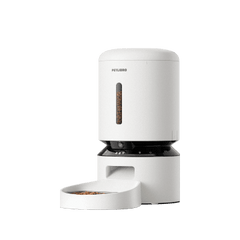
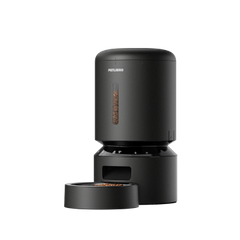








Follow these steps if the PETLIBRO App cannot find your feeder or the setup process fails.
Step 1. Make sure the feeder is ready for setup
Connect the feeder to power. If you are using battery power, make sure the battery switch is turned ON and the batteries have sufficient charge. Wait about 30 seconds after powering on the feeder. You should hear the voice prompt indicating that the feeder is ready for Wi-Fi setup.
If you do not hear the voice prompt, or the app still cannot find the feeder, press and hold the Reset button on the back of the feeder for 3 seconds. After the reset is complete, the feeder will restart automatically and enter pairing mode again.
Step 2. Restart the feeder and check your Wi-Fi password
If Bluetooth setup still fails, completely restart the feeder by turning the battery switch OFF, unplugging the power cable, and then reconnecting the power.
Before trying again, make sure you entered the correct Wi-Fi password. If the password is incorrect, the PETLIBRO App will display an error message.
Step 3. Reset and Reconnect
If QR code setup fails, reset the feeder by pressing and holding the Reset button for 3 seconds, then try adding the feeder again using Bluetooth Setup. Here is a tutorial video: How to Connect the Granary 2 Vision.
Step 4. Try Hotspot Setup
If setup continues to fail, try connecting the feeder using a mobile hotspot on the other phone instead. If Hotspot Setup also fails, connect your phone to the same Wi-Fi network and confirm that your home network has internet access.
Still Need Help?
If pairing still fails, restart both your router and feeder before trying again. If the issue continues, contact PETLIBRO Customer Support at help@petlibro.com for further assistance.